News links:
Wednesday, September 30, 2009
The Wii console now costs only $199.99
News links:
Saturday, September 19, 2009
Setup a cache-only DNS server on Windows Server 2003
A cache domain name system (DNS) is a DNS server that builds and stores a local cache of names learned while doing recursive queries on behalf of their clients. Moreover, a cache DNS server is not an authoritative for any domain and does not host any zones.
To setup a cache-only DNS server, you need to install DNS service on a computer that is running a server operating system, for example Windows Server 2003.
You can either install DNS service by using Manage Your Server in Administrator Tools on the program menu or by using Add or Remove Programs in Control Panel.
Installing a cache-only DNS server on Windows Server 2003:
- Open Control Panel and double click Add or Remove Programs
- Choose Add/Remove Windows Components
- Scroll down and select Networking Services in the Components list
- Click Details button
- Click to check Domain Name System (DNS) in the Subcomponents of Networking Services
- Click OK, and Next to begin configuring Windows Components.
Note: At this point, you may be prompted to insert Windows Server 2003 CD-ROM. You need to insert the correct version of Windows Server 2003 on which your computer is running.
- Insert Windows Server 2003 CD-ROM and click OK to continue. Or, if you have i386 folder of Windows Server 2003 stored on a network share, you can browse to that folder.
- Click Finish button to complete installing DNS service on Windows Server 2003.
You have now completed installing a cache-only DNS server on Windows Server 2003. A cache-only DNS server does not contain any zones. It’s only a DNS server that remembers a local cached names of client queries. So, for the server to cache names, you need to configure your clients to use the cache server as a DNS resolver.
Related resource:
Microsoft Support: How to Create a Caching-Only Name Server with Microsoft DNS
Book: DNS on Windows Server 2003 by Cricket Liu (Author), et al.
The windows installer service cannot update one or more protected windows files
When installing Microsoft Office 2007 on Windows XP Professional SP3, I get an error – the windows installer service cannot update one or more protected windows files.
It looks like the windows installer service looks for a dynamic link library file named fp4autl.dll in the folder “C:\Program Files\Common Files\Microsoft Shared\Web Server Extension\Bin\40.” The error occurs when the file is missing from the folder, and when the windows installer service attempts to update web services that associates with the Microsoft Office 2007.
The solution to this error is to place fp4autl.dll file back into “C:\Program Files\Common Files\Microsoft Shared\Web Server Extension\Bin\40.” There are two ways to get fp4autl.dll file – extract it from Windows XP setup CD or copy it from another Windows XP machine.
Extracting Fp4autl.dll from Windows XP setup CD-ROM:
- Open I386 folder on the Windows XP setup CD-ROM.
- Locate FP40EXT.CAB and double click it to open.
- Locate Fp4autl.dll and copy it to C:\Program Files\Common Files\Microsoft Shared\Web Server Extension\Bin\40.
- Restart Microsoft Office 2007 installation.
Copy Fp4autl.dll from another Windows XP machine:
- Open C:\Program Files\Common Files\Microsoft Shared\Web Services Extension\Bin\40.
- Locate and copy Fp4autl.dll and save it to a network share or a USB drive.
- Copy and paste Fp4autl.dll to C:\Program Files\Common Files\Microsoft Shared\Web Server Extension\Bin\40 on the computer that is missing the file.
- Restart Microsoft Office 2007 installation.
Fp4autl.dll is a Microsoft FrontPage Utility Dynamic Link Library file. During the installation of Microsoft Office 2007, Windows installer service needs this fp4autl.dll file to update shared services that associates with Microsoft Office 2007.
Other Fp4autl.dll errors:
Microsoft Support:
Registry key for hiding Screen Saver tab
You can hide a Screen Saver tab in Windows XP by adding a new DWORD registry entry in [HKEY_CURRENT_USER\Software\Microsoft\Windows\
CurrentVersion\Policies\System].
After you drill down to this key, right click, choose DWORD, and type NoDispScrSavPage. Then, set the value for this entry as follows:
- NoDispScrSavPage = 1 to hide Screen Saver tab
- NoDispScrSavPage = 0 to unhide Screen Saver tab
This is the whole string after you create the entry, and if you export it out.
Windows Registry Editor Version 5.00
[HKEY_CURRENT_USER\Software\Microsoft\Windows\CurrentVersion\
Policies\System]
"NoDispScrSavPage"=dword:00000001
Also, this entry applies to a current user, meaning it applies to each user who logs on to the machine; so you have to find a way that each user gets this setting when he/she logs on.
Resources:
Book
- Microsoft Windows XP Registry Guide by Jerry Honeycutt (Author)
- Microsoft Windows Registry Guide, Second Edition by Jerry Honeycutt (Author)
Microsoft Support
How to move DHCP database from one server to another server
You use netsh dhcp server command to move DHCP database from one server to another server – for example moving DHCP database from Windows Server 2003 to Windows Server 2008.
Please note that you must install DHCP server service on a target server before moving the database.
On a source DHCP server (Windows Server 2003):
- Open a command prompt
- Type netsh dhcp server export drive:\dhcp.txt all
- Copy the file to a network share folder a thumb drive.
On a target DHCP server (Windows Server 2008):
- Open a command prompt
- Type netsh dhcp server import drive:\dhcp.txt all
- Activate the scope if necessary.
That’s it!
Book
- Mastering Windows Server 2003 by Mark Minasi
- Windows Server 2008 Administrator's Pocket Consultant by William Stanek
How to make a local Group Policy not apply to Administrators
Local Group Policy settings apply to all user accounts who log on to the computers and who have READ permission to %SystemRoot%\System32\GroupPolicy folder. However, policies are not applied to users who do not have READ permission. Therefore, by denying READ permission to Administrators or other users whom you don’t want to restrict, you free those users from control by group policies.
To use this method, follow the steps:
- Make the Group Policy setting changes that you want.
- In Windows Explorer, right-click the %SystemRoot%\System32\GroupPolicy folder and choose Properties. (GroupPolicy is a hidden folder; if you can’t find it in System32, choose Tools > Folder Options > View > Show Hidden Files and Folders.)
- On the Security tab of the GroupPolicy Properties dialog, select the Administrators group and select DENY check box for READ permission.
Note: After you give DENY access to Administrators and if you want to change or modify the policy setting, you will not be able to run MMC or Group Policy Editor when you log in to the computer as Administrator unless you give back Administrators full rights to the GroupPolicy folder. To give Administrators FULL ACCESS, in Windows Explorer, right-click %SystemRoot%\System32\GroupPolicy folder > choose Properties > choose Security tab > select FULL CONTROL check box.
Recommended Books:
- Group Policy: Fundamentals, Security, and Troubleshooting (Paperback) by Jeremy Moskowitz (Author)
- Windows® Group Policy Administrator's Pocket Consultant (Paperback) by William R. Stanek (Author)
- Group Policy: Management, Troubleshooting, and Security: For Windows Vista , Windows 2003, Windows XP, and Windows 2000 (Mark Minasi Windows Administrator Library) (Paperback) by Jeremy Moskowitz (Author)
How to change the default TCP port for Remote Desktop connection
Remote Desktop Protocol (RDP) uses a default TCP port 3389. When you enable a remote desktop connection on your computer, you turn on this port automatically and allow a remote connection to your computer. Everyone in Administrators and Remote Desktop Users groups can connect to your computer remotely.
You can change the default port for Remote Desktop by editing the registry entry. Configuring and setting a new port for Remote Desktop provides a secure remote connection to your computer because only you and people with permission know the new port assignment.
Using Registry editor to change port for Remote Desktop
- Open Registry editor by typing Regedit in the Run command line.
- Expand these registry entries and subentries:
HKEY_LOCAL_MACHINE\SYSTEM\CurrentControlSet\Control\Terminal Server\WinStations\RDP-Tcp - Select RDP-Tcp and in the right window, scroll down and double-click PortNumber.
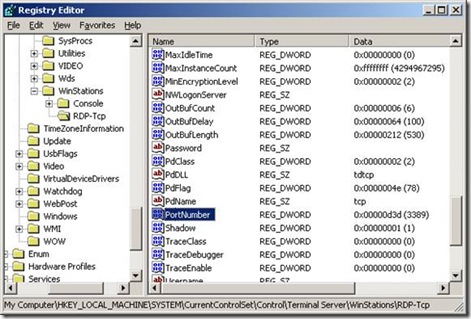
- Choose Decimal, double-click to select 3389 in the Value Data: text box, enter a new port number, for example 3391, and then click OK.
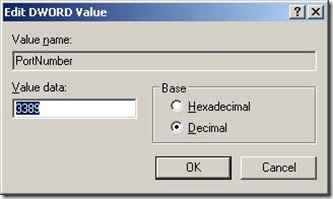
You may need to restart the computer to effect the new change.
How to enable Remote Desktop connection
- Open Control Panel and double-click System to open System Properties.
- Choose Remote tab on the System Properties sheet.
- In Remote Desktop section, check “Allow users to remotely connect to this computer” check box.
- Click “Select Remote Users” button to add users that you allow to remotely connect to your computer, and click OK.
How to configure Windows firewall to allow Remote Desktop
When Remote Desktop is enabled, the default port 3389 is added to the exception list of the Windows firewall. Since the new port is configured, a new exception must be created.
- Open Control Panel and double-click Windows Firewall.
- Choose Exceptions tab on the Windows Firewall dialog box.
- Clear “Remote Desktop” check box as this is a default port for Remote Desktop.
- Click “Add Port…” button and in Name: field, enter “Remote Desktop Connection” and in Port number: field; enter the new port that is previously configured in the registry editor, for example 3391. Make sure TCP is selected.
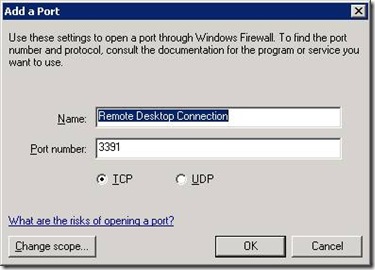
- Click OK.
In the exception list of the Windows Firewall, you should have “Remote Desktop Connection” checked.
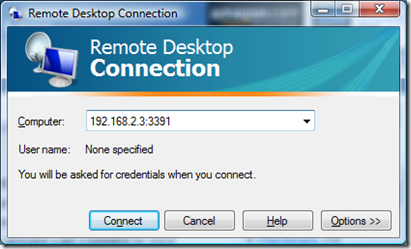
When you remotely connect to your computer with an assigned port, you must enter the new port along with the IP address or computer name. For example, if your computer IP is 192.168.12.3, and you configured a new port 3391 for your Remote Desktop; then you must enter 192.168.2.3:3391 in the Remote Desktop connection client.
Book list for system administrators and IT professionals
Active Directory
- 70-640, Package: Windows Server 2008 Active Directory Configuration by Microsoft Official Academic Course
- Active Directory: Designing, Deploying, and Running Active Directory by Brian Desmond
- Active Directory® Administrator's Pocket Consultant by William Stanek
- Active Directory Domain Services 2008 How-To by John Policelli
- Active Directory Cookbook, 2nd Edition by Robbie Allen (Author), Laura Hunter (Author)
- Windows Server 2008 Active Directory Resource Kit by Stan Riemer
DNS
- DNS on Windows Server 2003 by Cricket Liu
- DNS and BIND (5th Edition) by Cricket Liu
- Pro DNS and BIND by Ron Aitchison
Exchange Server
- Exchange Server 2010 Unleashed by Rand Morimoto (Author), Michael Noel (Author), Chris Amaris (Author), Andrew Abbate (Author), Mark Weinhardt (Author)
- Mastering Microsoft Exchange Server 2010 by Jim McBee
- Mastering Microsoft Exchange Server 2007 SP1 by Jim McBee
- Microsoft Exchange Server 2007 Administrator's Pocket Consultant Second Edition by William R. Stanek
Group Policy
- Group Policy: Management, Troubleshooting, and Security: For Windows Vista , Windows 2003, Windows XP, and Windows 2000 by Jeremy Moskowitz
- Group Policy: Fundamentals, Security, and Troubleshooting by Jeremy Moskowitz
- Windows® Group Policy Administrator's Pocket Consultant by William R. Stanek
- Windows® Group Policy Resource Kit: Windows Server® 2008 and Windows Vista® by Derek Melber
IIS
- Internet Information Services (IIS) 7.0 Resource Kit by Mike Volodarsky
- Internet Information Services (IIS) 7.0 Administrator's Pocket Consultant by William R. Stanek
- Microsoft® IIS 6.0 Administrator's Pocket Consultant by William R. Stanek
Microsoft Forefront
- Microsoft Forefront Security Administration Guide by Jesse Varsalone (Author), Jan Kanclirz Jr. (Author)
Registry Guide
- Microsoft Windows Registry Guide, Second Edition by Jerry Honeycutt
- Microsoft Windows XP Registry Guide by Jerry Honeycutt
SharePoint
- Microsoft Office SharePoint Server 2007 Best Practices by Ben Curry (Author), Bill English (Author)
- Beginning SharePoint 2007 Administration: Windows SharePoint Services 3.0 and Microsoft Office SharePoint Server 2007 by Göran Husman
- Microsoft SharePoint 2007 Unleashed by Michael Noel (Author), Colin Spence (Author)
System Center
- System Center Configuration Manager (SCCM) 2007 Unleashed by Kerrie Meyler
- System Center Operations Manager 2007 Unleashed by Kerrie Meyler
Scripting
- Essential PowerShell by Holger Schwichtenberg
- Windows PowerShell in Action by Bruce Payette
- Microsoft® Windows® Scripting Self-Paced Learning Guide by Ed Wilson
- Windows PowerShell Cookbook: for Windows, Exchange 2007, and MOM V3 by Lee Holmes
- Microsoft PowerShell, VBScript & JScript Bible by William R. Stanek
Windows Server 2008 Hyper-V
- Windows Server® 2008 Hyper-V(TM) Resource Kit by Robert Larson (Author), Janique Carbone (Author)
- Windows Server 2008 Hyper-V: Insiders Guide to Microsoft's Hypervisor by John Kelbley
- Microsoft Virtualization with Hyper-V: Manage Your Datacenter with Hyper-V, Virtual PC, Virtual Server, and Application Virtualization by Jason Kappel
Windows Server 2008
- Mastering Windows Server 2008 Networking Foundations by Mark Minasi
- MCITP Self-Paced Training Kit (Exams 70-640, 70-642, 70-643, 70-647): Windows Server® 2008 Enterprise Administrator Core Requirements by Dan Holme
- Windows Server 2008 Unleashed by Rand Morimoto
- Windows Server® 2008 Resource Kit by Microsoft Corporation
- The Complete Guide to Windows Server 2008 by John Savill
- Windows Server 2008 Inside Out by William R. Stanek
- Windows Administration Resource Kit: Productivity Solutions for IT Professionals by Dan Holme
You receive an "Error 721" error message when you try to establish a VPN connection through your Windows Server based remote access server
If you try to establish a virtual private network (VPN) connection to a corporate network by using a Point-to-Point Tunneling Protocol (PPTP) client, the connection to the Microsoft Windows Server-based remote access server may not succeed.
You may receive the following error message:
- Error 721: The remote computer is not responding.
Cause:
This issue may occur if the network firewall does not permit Generic Routing Encapsulation (GRE) protocol traffic. GRE is IP Protocol 47. PPTP uses GRE for tunneled data.
Resolution:
To resolve this issue, configure the network firewall to permit GRE protocol 47. Also, make sure that the network firewall permits TCP traffic on port 1723. Both of these conditions must be met to establish VPN connectivity by using PPTP.